Attacking Common Applications:
Link to challenge:
https://academy.hackthebox.com/module/113
(log in required)
Class: Tier II | Medium | Offensive
Note: throughout the module we will need to configure our p
...
Attacking Common Applications:
Link to challenge:
https://academy.hackthebox.com/module/113
(log in required)
Class: Tier II | Medium | Offensive
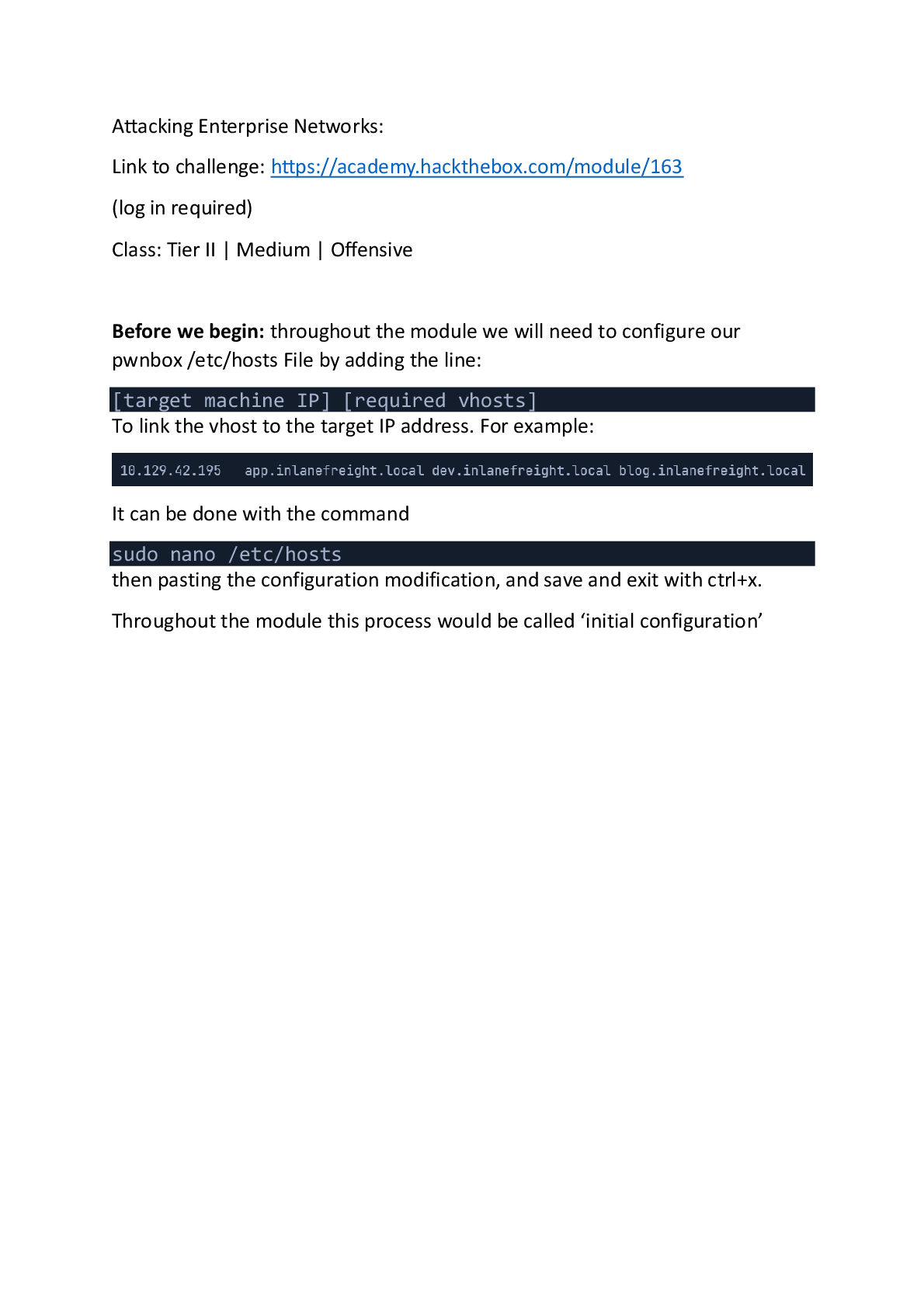
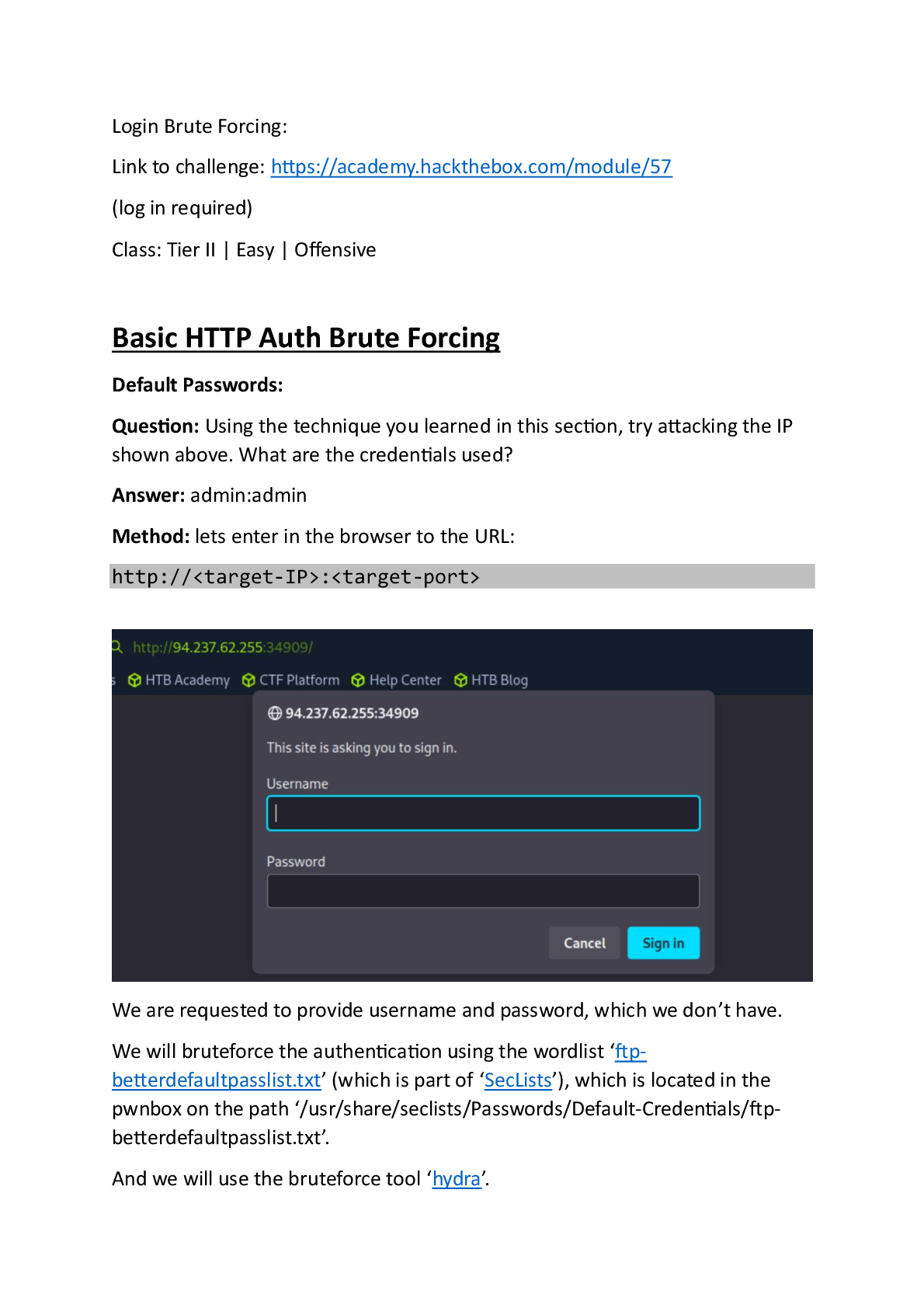
Note: throughout the module we will need to configure our pwnbox /etc/hosts
File by adding the line:
[target machine IP] [required vhosts]
For example:
It can be done with the command
sudo nano /etc/hosts
then pasting the configuration modification, and save and exit with ctrl+x.
Throughout the module this process would be called ‘initial configuration’.
Setting the Stage:
Application Discovery & Enumeration:
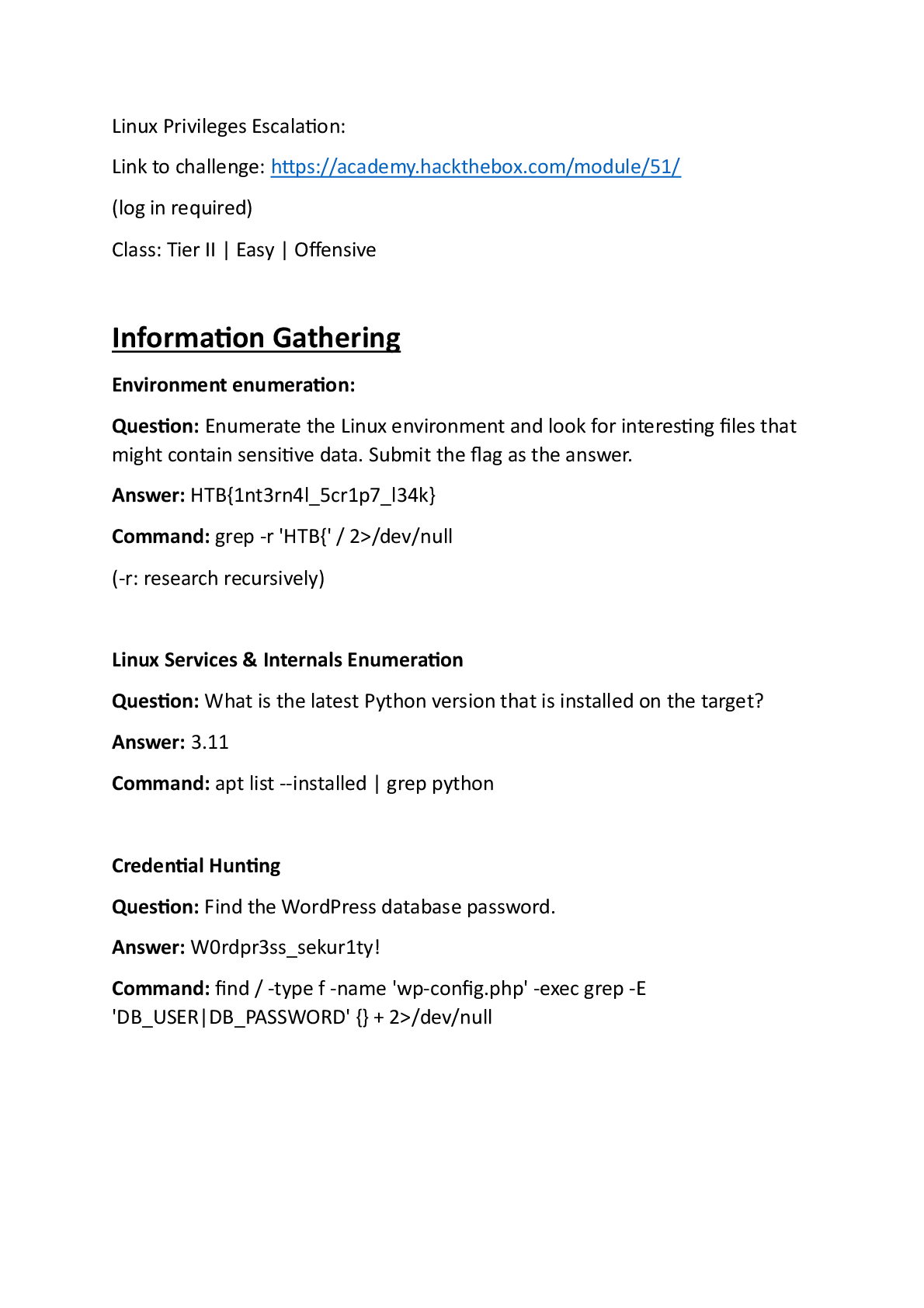
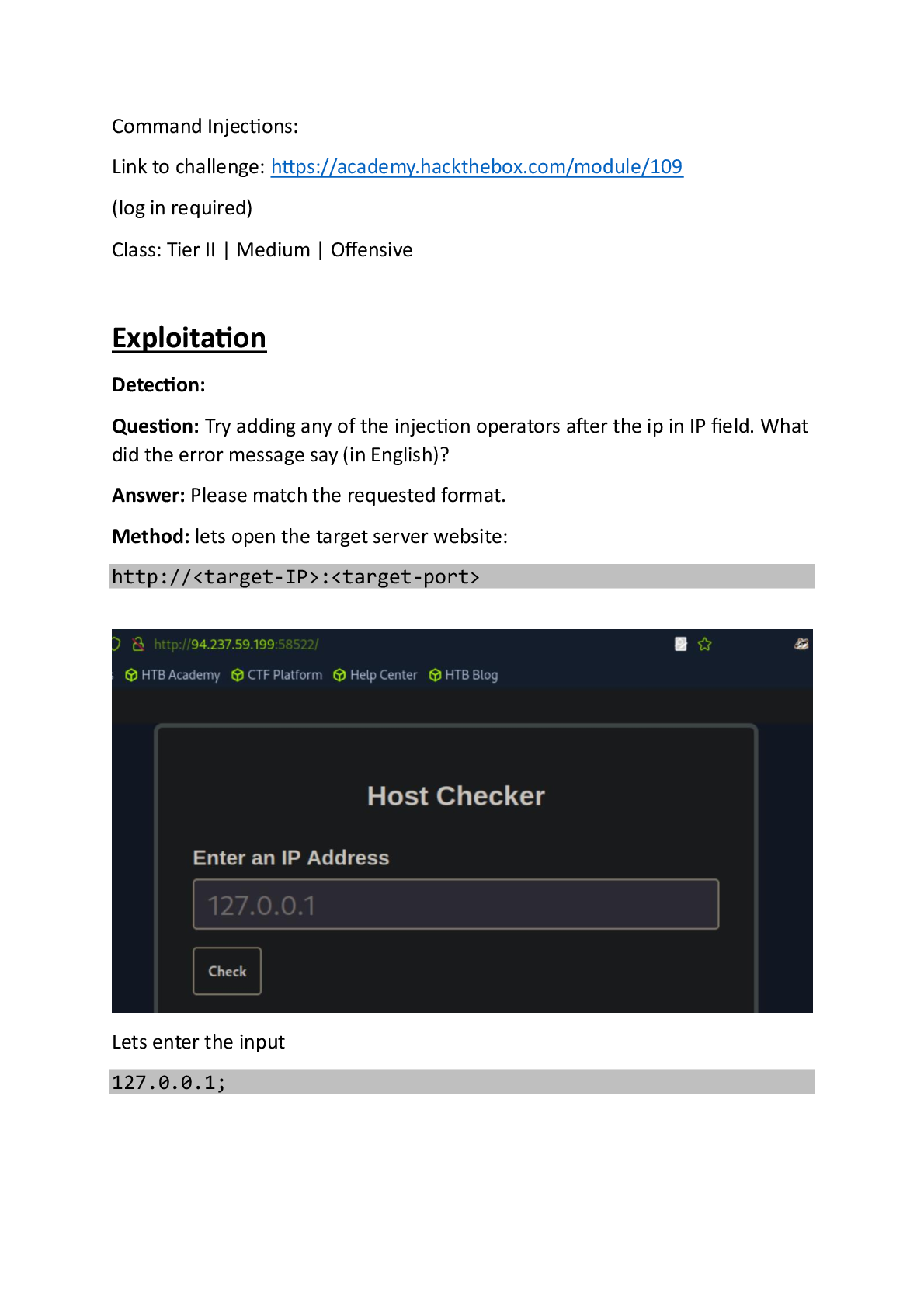
Question: Use what you've learned from this section to generate a report with EyeWitness. What is the name of the .db file EyeWitness creates in the inlanefreight_eyewitness folder? (Format: filename.db)
Answer: ew.db
Method: First, confirm that EyeWitness in installed on your machine. if not – install with the command: “sudo apt install eyewitness”.
When EyeWitness is installed – run the command:
eyewitness --web -x web_discovery.xml -d inlanefreight_eyewitness
the input xml file we provided is non-existent for the moment so as expected, we got:
(the web_discovery.xml file should be an nmap scan output, but for this question it is not necessary to run one before running the EyeWitness).
After the EyeWitness inspection is executed, we run ‘ls’ on the current home folder:
And we can observe that there is a directory called ‘inlanefreight_eyewitness’
Lets inspect it:
We get the answer on the right – ‘ew.db’, the file created from the EyeWitness run.
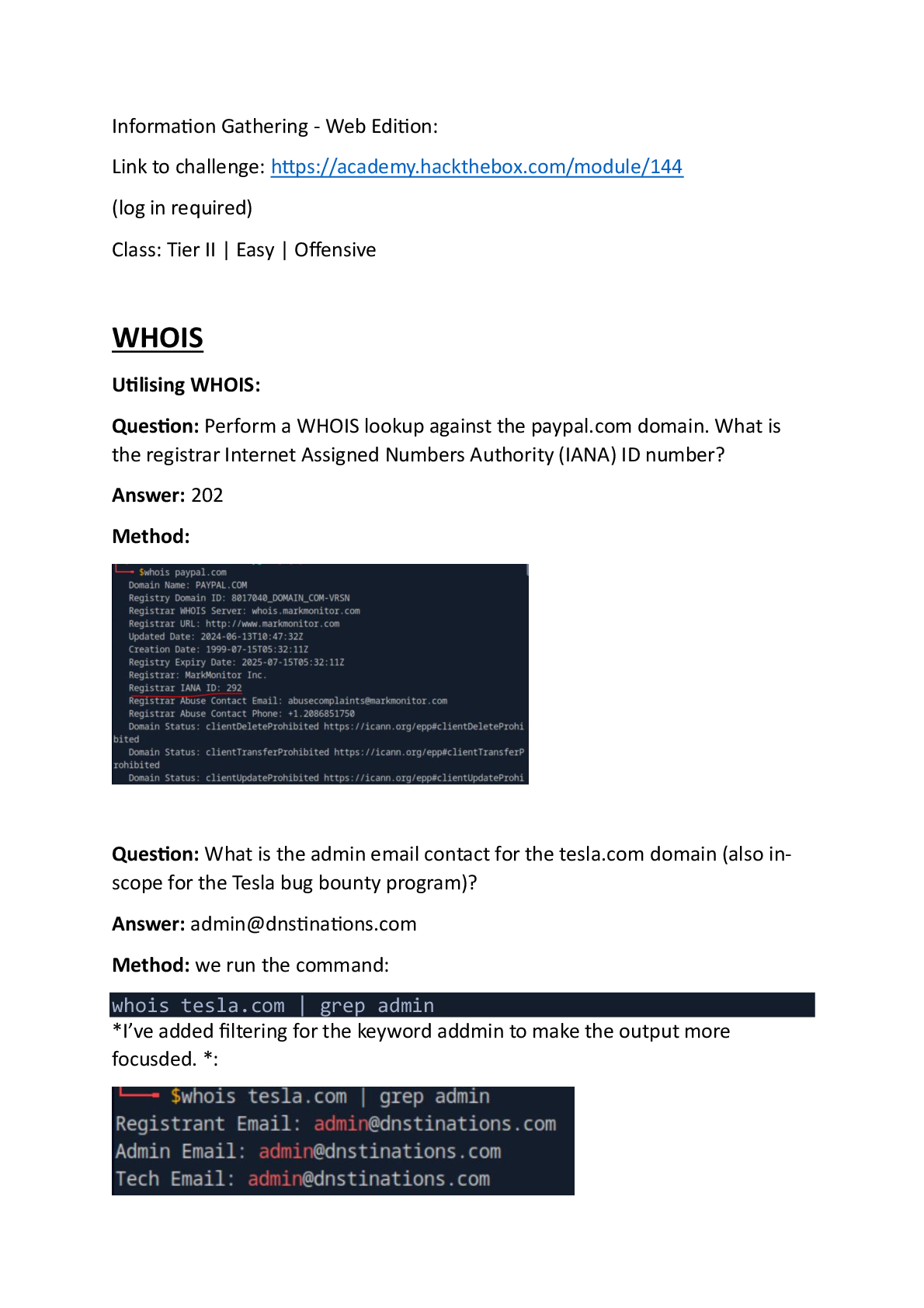
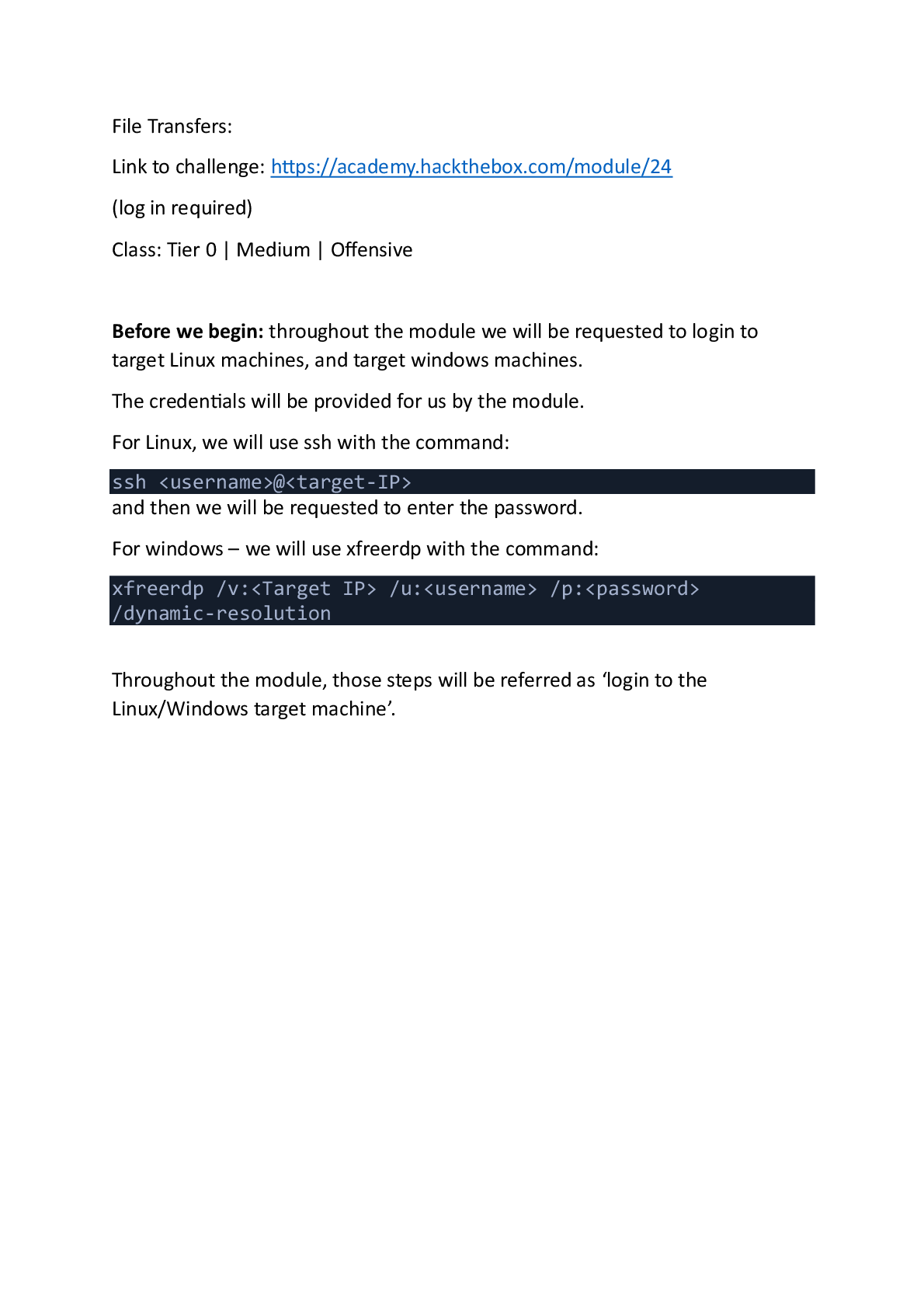
Question: What does the header on the title page say when opening the aquatone_report.html page with a web browser? (Format: 3 words, case sensitive)
Answer: Pages by Similarity
Method: first, we install aquatone with the command
wget https://github.com/michenriksen/aquatone/releases/download/v 1.7.0/aquatone_linux_amd64_1.7.0.zip
then unzip it with the command
unzip aquatone_linux_amd64_1.7.0.zip
after that when running ‘ls’ we should have a file called ‘aquatone’:
Now we need web_discovery.xml file to run the aquatone on.
For that we will run the following nmap command:
sudo nmap -p 80,443,8000,8080,8180,8888,10000 --open -oA web_discovery 127.0.0.1
this will scan the localhost and output the results to a file called web_discovery.xml.
now, before we run aquatone, we need to install chrome (it is not in the formal guide, but for me running aquatone without it resulted with error).
We will do it with the following commands (for Ubuntu/Debian):
wget https://dl.google.com/linux/direct/google-chromestable_current_amd64.deb
sudo dpkg -i google-chrome-stable_current_amd64.deb
sudo apt-get install -f
after that it should do well.
Next, we run the command:
cat web_discovery.xml | ./aquatone -nmap
to run aquatone on the web_discovery.xml (our nmap output):
At the end of the running, we get the message:
So lets check it:
‘ls’ command confirms its existence.
Now, we need the title of the page, we will obtain it by opening web browser, and entering the aquatone_report.html full path, the full path can be obtained with the command:
realpath aquatone_report.html
copy the full path on the URL and get the result:
Content Management Systems (CMS):
WordPress - Discovery & Enumeration:
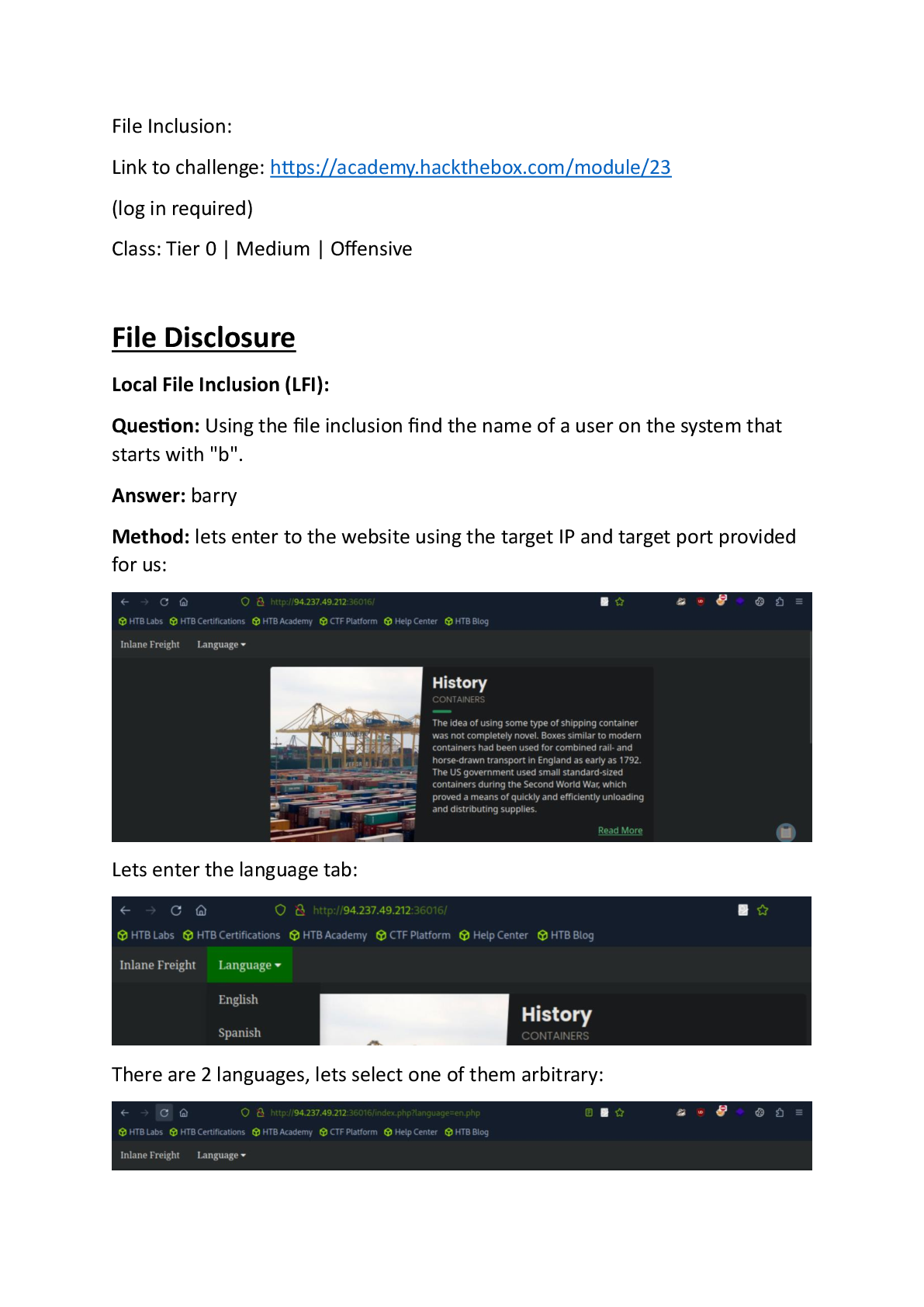
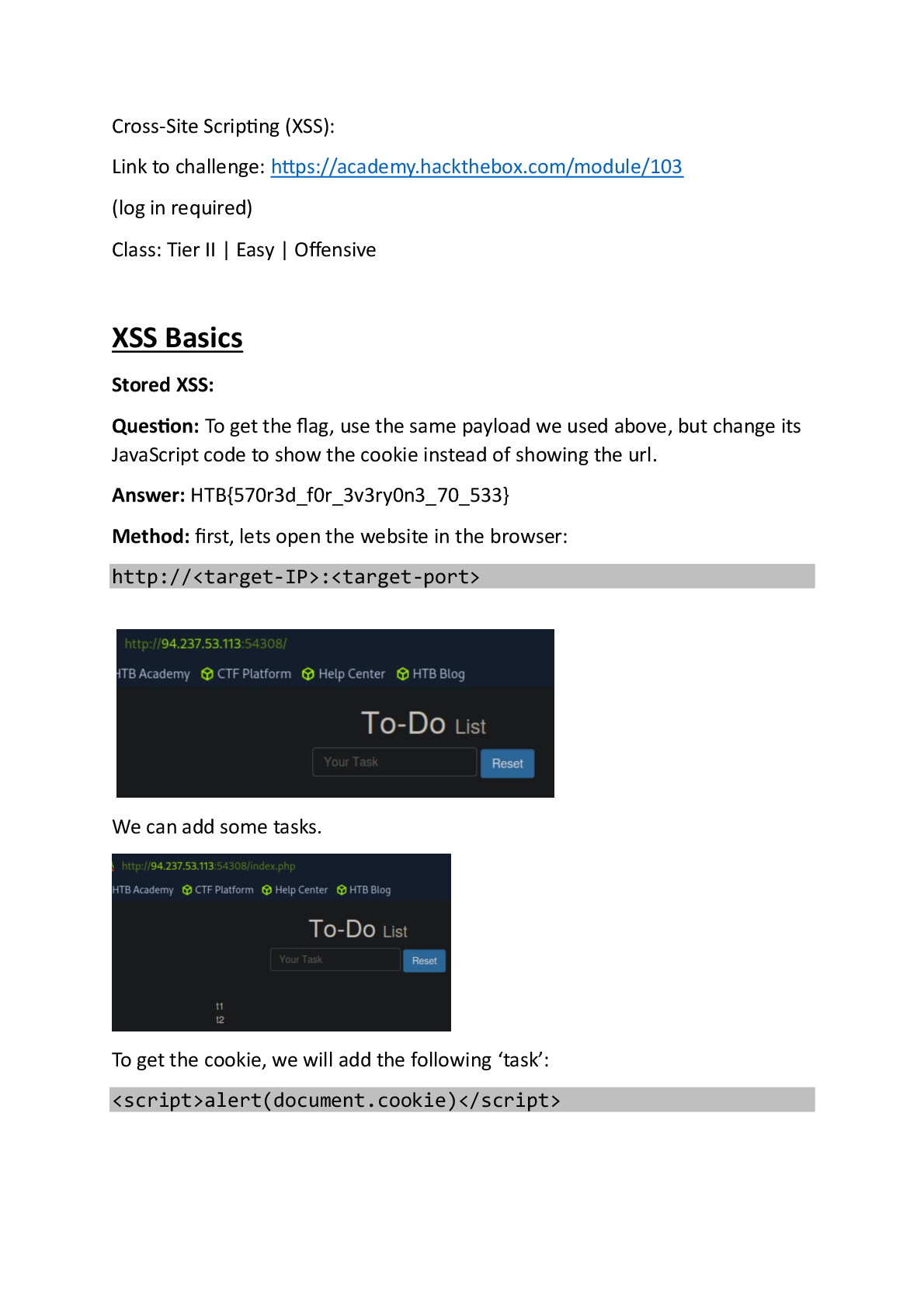
Question: Enumerate the host and find a flag.txt flag in an accessible directory.
Answer: 0ptions_ind3xeS_ftw!
Method: first, we will do the ‘initial configuration’ on vhost ‘blog.inlanefreight.local’.
When it’s done, we will have to run enumeration on the website files.
For that purpose, we will use a tool called ‘dirbuster’.
we install ‘dirbuster’ directly from GitHub repository with the command:
git clone https://gitlab.com/kalilinux/packages/dirbuster.git
after ‘dirbuster’ is install – we will have the installed directory in our home directory:
We will ‘cd’ our way inside, and run the .sh file:
A graphic interface should open:
On target URL, we set the vhost address as the target (with http:// of course),
On word list we selected an arbitrary medium sized wordlist installed with the ‘dirbuster’, and we added txt extension (albeit for me it also worked without it).
Then – we Start the run:
[Show More]
Preview 10 out of 123 pages