ENERGY
Simulation Activity #4: Energy Skate Park
Simulation created by the Physics Education Technology Project (PhET)
c/o The University of Colorado at Boulder http://phet.colorado.edu/
Investigating Energy Ex
...
ENERGY
Simulation Activity #4: Energy Skate Park
Simulation created by the Physics Education Technology Project (PhET)
c/o The University of Colorado at Boulder http://phet.colorado.edu/
Investigating Energy Exchanges: Kinetic Energy and Gravitational
Potential Energy
Objective:
This activity is intended to enhance your physics education. We offer it as a virtual lab online. We think it will help you make connections between predictions and conclusions, concepts and actions, equations and practical activities. We also think that if you give this activity a chance, it will be fun! This is an opportunity to learn a great deal. Answer all questions as you follow the procedure in running the simulation.
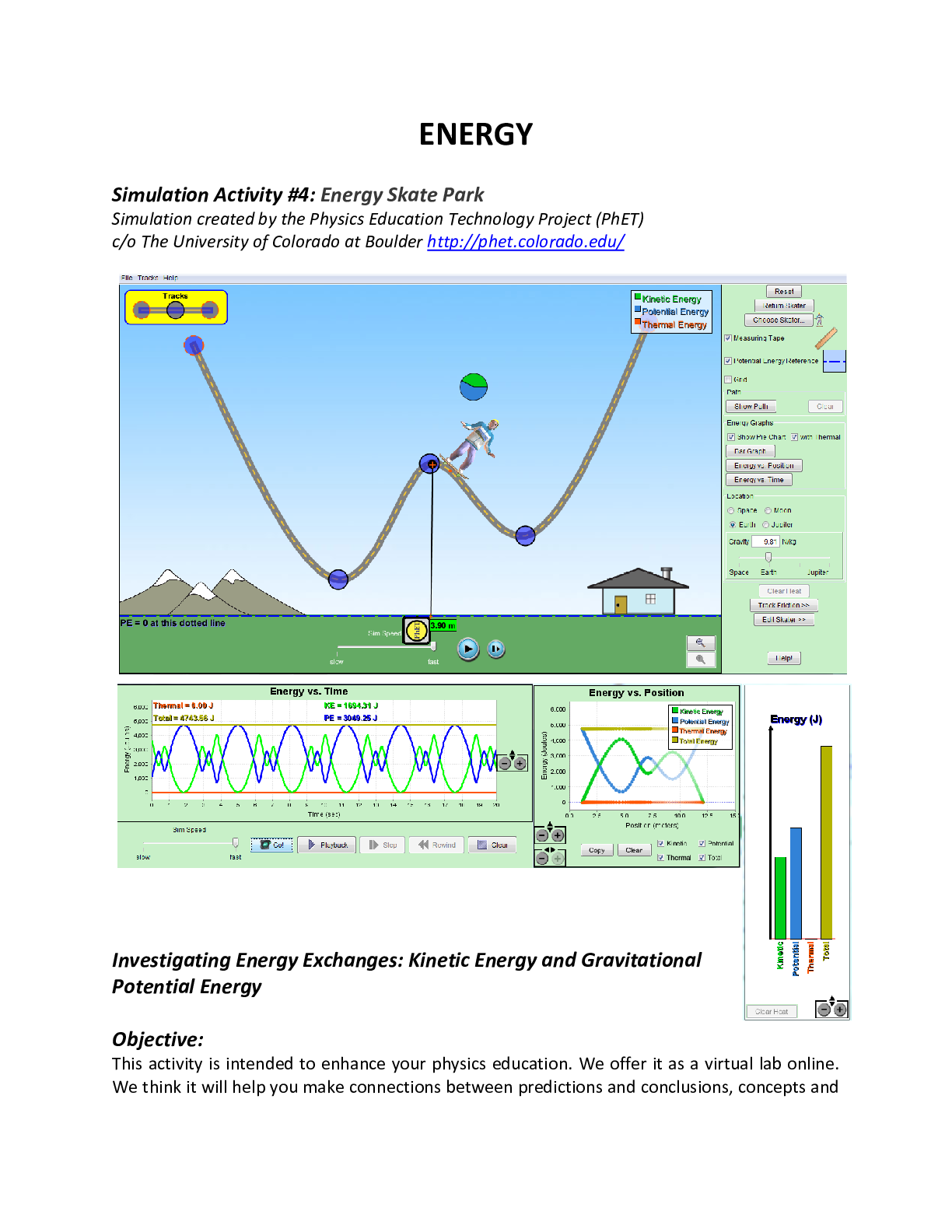
Learn about conservation of energy with a skater dude! Build tracks, ramps and jumps for the skater and view the kinetic energy, potential energy and friction as he moves. You can also take the skater to different planets or even space!
Take some time and play with the skater and his track. It helps you to practice with the following features and controls.
Track selector: click on Tracks and select from the drop down menu. For example, the “Double well (Roller Coaster)” shown above.
Reset: This rests the simulation to default values and sets the track to friction parabola track.
Skater selector: clicking on Choose skater… will allows you to choose a skateboarder with a different mass.
Measuring Tape: Check the Measuring Tape Box when you want to make measurements. Drag the left end of the tape measure to where you start your measurement, and then drag the right end to the final location. To make a reference horizontal line to your measurement, check the potential energy reference box and drag the blue line you see on the screen to the initial position.
Graph Selector: If you would like to observe graphs that depicts the relationships among potential, kinetic, and thermal energy of the simulation, click buttons under the Energy Graphs. The types of graphs are shown above. You can also add pie graph by checking the show pie chart box. These graphs can be shown with or without the Thermal energy.
Gravity: you may change the gravitational force by changing the location or the sliding bar underneath Gravity box.
Additional Features: Clicking the Clear Heat makes the track frictionless. You can also edit the track friction and the skater mass using Track friction and Edit Skater buttons. You can also control the speed of the skater using the slide bar under the screen.
Introduction:
The law of conservation of energy states that the total amount of energy in an isolated system remains constant. As a consequence of this law, we can say that energy neither created nor destroyed, but can change its form.
The total energy E of a system (the sum of its mechanical energy and its internal energies, including thermal energy) can change only by amounts of energy that are transferred to or from the system. If work W is done on the system, then
W = E = Emech + Eth + Eint
If the system is isolated (W = 0), this gives
Emech + Eth + Eint = 0
The skate park is an excellent example of the conservation of energy. For the isolated skate-track-Earth system, the law of conservation of energy equation has the form
[Show More]




 (1).png)




.png)


.png)