• Using ArcGIS
o Setting up a workspace in ArcGIS
Lab 1 – Seeing up a workspace in ArcGIS
o 1. Create a folder in which you will store all data, geodatabases and map
documents
o 2. Download the data associated wit
...
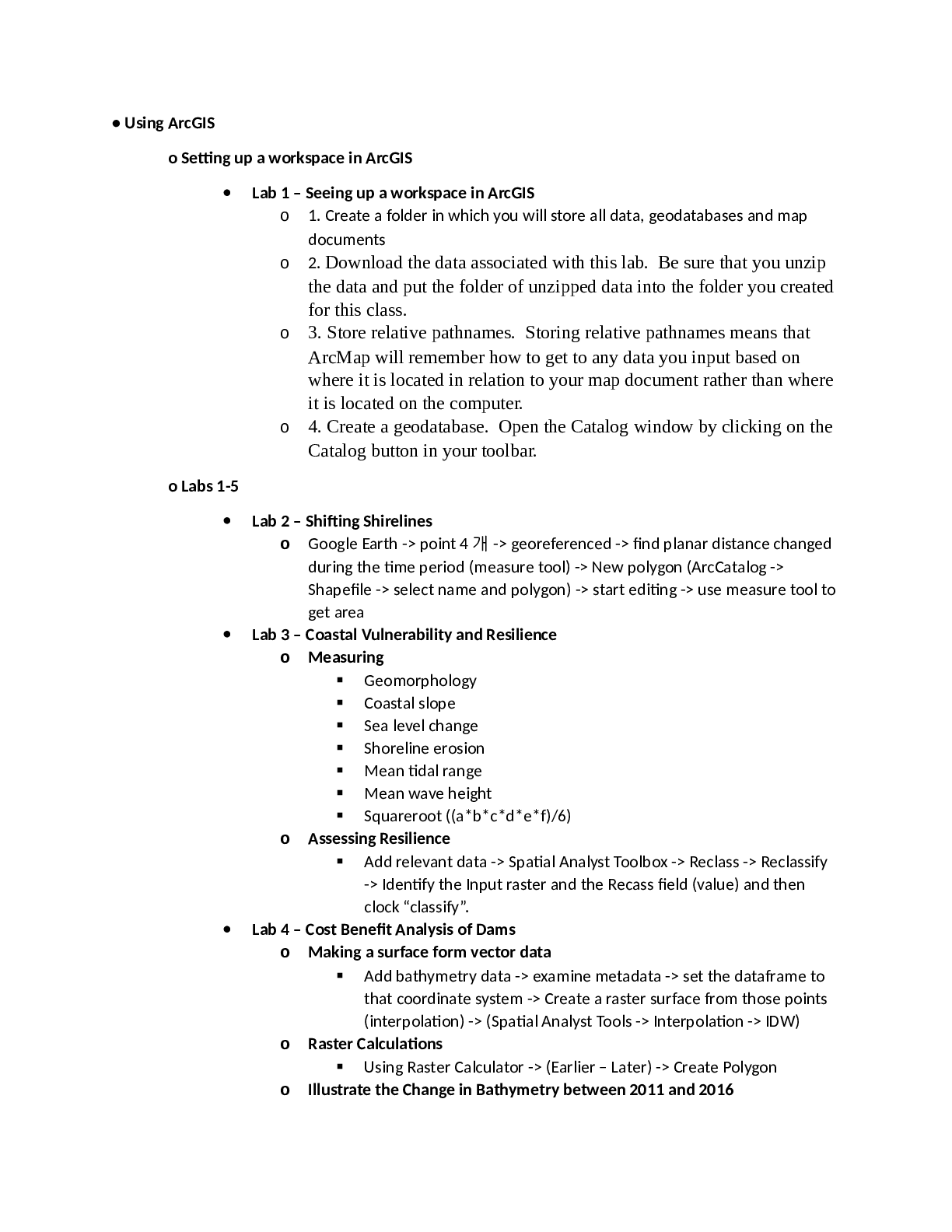
• Using ArcGIS
o Setting up a workspace in ArcGIS
Lab 1 – Seeing up a workspace in ArcGIS
o 1. Create a folder in which you will store all data, geodatabases and map
documents
o 2. Download the data associated with this lab. Be sure that you unzip
the data and put the folder of unzipped data into the folder you created
for this class.
o 3. Store relative pathnames. Storing relative pathnames means that
ArcMap will remember how to get to any data you input based on
where it is located in relation to your map document rather than where
it is located on the computer.
o 4. Create a geodatabase. Open the Catalog window by clicking on the
Catalog button in your toolbar.
o Labs 1-5
Lab 2 – Shifting Shirelines
o Google Earth -> point 4 개 -> georeferenced -> find planar distance changed
during the time period (measure tool) -> New polygon (ArcCatalog ->
Shapefile -> select name and polygon) -> start editing -> use measure tool to
get area
Lab 3 – Coastal Vulnerability and Resilience
o Measuring
Geomorphology
Coastal slope
Sea level change
Shoreline erosion
Mean tidal range
Mean wave height
Squareroot ((a*b*c*d*e*f)/6)
o Assessing Resilience
Add relevant data -> Spatial Analyst Toolbox -> Reclass -> Reclassify
-> Identify the Input raster and the Recass field (value) and then
clock “classify”.
Lab 4 – Cost Benefit Analysis of Dams
o Making a surface form vector data
Add bathymetry data -> examine metadata -> set the dataframe to
that coordinate system -> Create a raster surface from those points
(interpolation) -> (Spatial Analyst Tools -> Interpolation -> IDW)
o Raster Calculations
Using Raster Calculator -> (Earlier – Later) -> Create Polygon
o Illustrate the Change in Bathymetry between 2011 and 2016
[Show More]






.png)

.png)