Assignment 4 : Structured Illumination and Meshing
Please edit the cell below to include your name and student ID #
name:
SID:
In [ ]:
1. Decoding
Write a function called decode that reads in a set of images captur
...
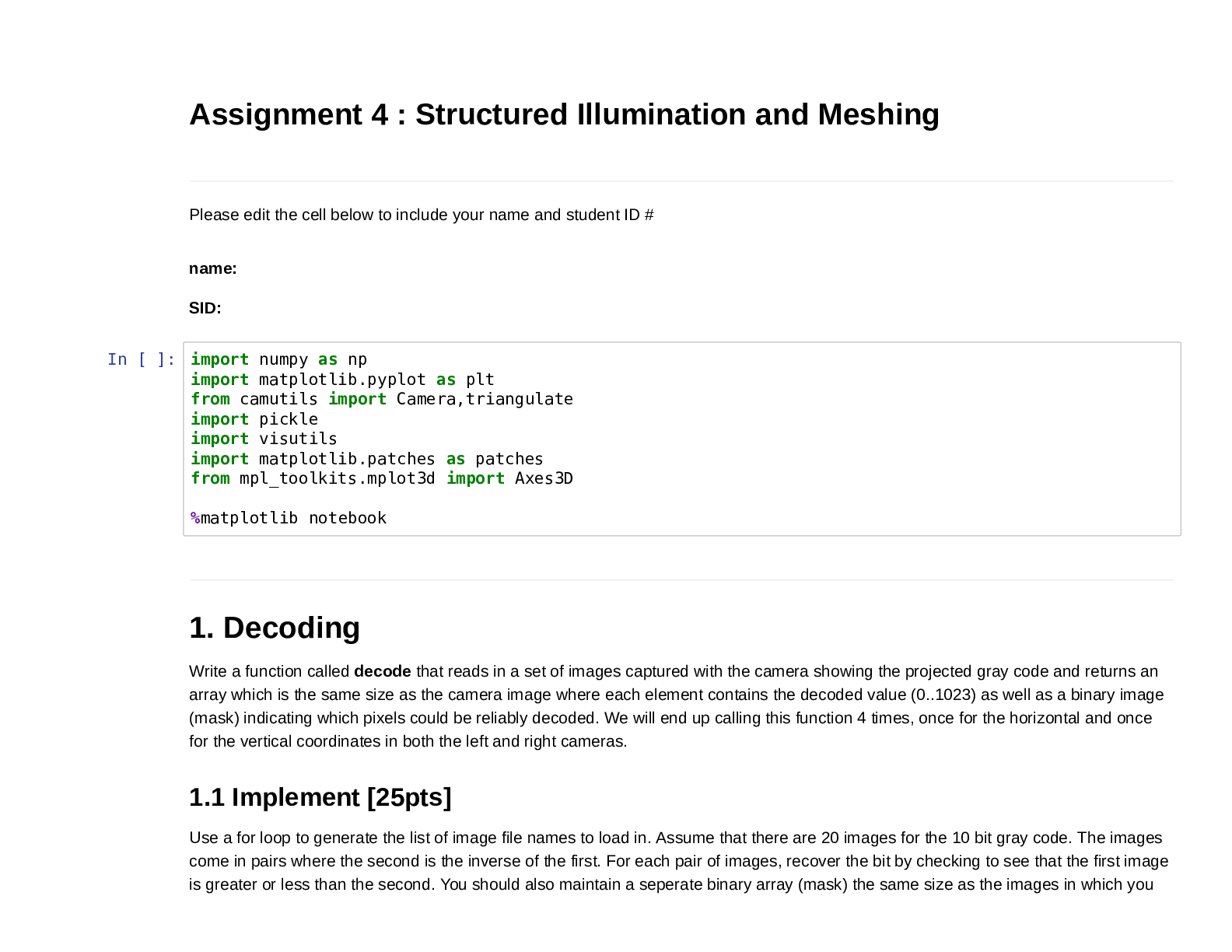
Assignment 4 : Structured Illumination and Meshing
Please edit the cell below to include your name and student ID #
name:
SID:
In [ ]:
1. Decoding
Write a function called decode that reads in a set of images captured with the camera showing the projected gray code and returns an
array which is the same size as the camera image where each element contains the decoded value (0..1023) as well as a binary image
(mask) indicating which pixels could be reliably decoded. We will end up calling this function 4 times, once for the horizontal and once
for the vertical coordinates in both the left and right cameras.
1.1 Implement [25pts]
Use a for loop to generate the list of image file names to load in. Assume that there are 20 images for the 10 bit gray code. The images
come in pairs where the second is the inverse of the first. For each pair of images, recover the bit by checking to see that the first image
is greater or less than the second. You should also maintain a seperate binary array (mask) the same size as the images in which you
import numpy as np
import matplotlib.pyplot as plt
from camutils import Camera,triangulate
import pickle
import visutils
import matplotlib.patches as patches
from mpl_toolkits.mplot3d import Axes3D
%matplotlib notebookmark "undecodable" pixels for which the absolute difference between the first and second image in the pair is smaller than some user
defined threshold. This will allow us to ignore pixels for which the decoding is likely to fail (e.g., pixels that weren't illuminated by the
projector). I used a threshold of 0.02 when reconstructing the scan below. You will want to mark a pixel as bad if any of the 10 bits was
undecodeable.
After thresholding the pairs you should have 10 binary images. You can convert this stack of binary images into a single "decimal image"
by decoding each bit pattern to its corresponding decimal representation. As discussed in class, the bits are coded using a graycode
rather than a standard binary code so you will need to do a little work to decode them correctly.
I recommend first converting the 10 bit code from the gray code to standard binary (binary coded decimal) using the algorithm we
described in class that successively XORs the bits. Once you have converted to BCD, you can then produce the final decimal value
using the standard binary-to-decimal conversion (i.e., ).
In NumPy you can implement both steps efficiently with a for-loop over the 10 bits and vectorized operations over the spatial locations.
Make sure you are processing the bits in the correct order (i.e. from least-significant to most-significant).
∑9 n=0 B[9 − n] ∗ 2nIn [ ]:
1.2 Test and Visualize [5pts]
def decode(imprefix,start,threshold):
"""
Given a sequence of 20 images of a scene showing projected 10 bit gray code,
decode the binary sequence into a decimal value in (0,1023) for each pixel.
Mark those pixels whose code is likely to be incorrect based on the user
provided threshold. Images are assumed to be named "imageprefixN.png" where
N is a 2 digit index (e.g., "img00.png,img01.png,img02.png...")
Parameters
----------
imprefix : str
Image name prefix
start : int
Starting index
threshold : float
Threshold to determine if a bit is decodeable
Returns
-------
code : 2D numpy.array (dtype=float)
Array the same size as input images with entries in (0..1023)
mask : 2D numpy.array (dtype=logical)
Array indicating which pixels were correctly decoded based on the threshold
"""
# we will assume a 10 bit code
nbits = 10
# don't forget to convert images to grayscale / float after loading them in
return code,maskThe graycode images which are projected are included in the data sub-directory gray/. This is useful for debugging your decode
function prior to running it on the real scan data since the results should be perfect (no noise!).
1. Check that your decode function correct decodes the projector data
2. Visualize the results of running your decode function on one of the provided scans
[Show More]



.png)

.png)
.png)
.png)


.png)